
Update the BUCS Remote Agent
Before You Begin
ℹ️ TIP: The update process follows the same steps as a standard installation and will upgrade your existing agent without requiring reconfiguration in most cases.
⚠️ IMPORTANT:
- You must have administrator access to the server where the agent is installed
- The agent should be installed on a dedicated, always-on server
- Ensure you have access to the BUCS Customer Portal in case reauthorization is required
Download the Latest BUCS Remote Agent
- Navigate to the BUCS Customer Portal > Downloads.
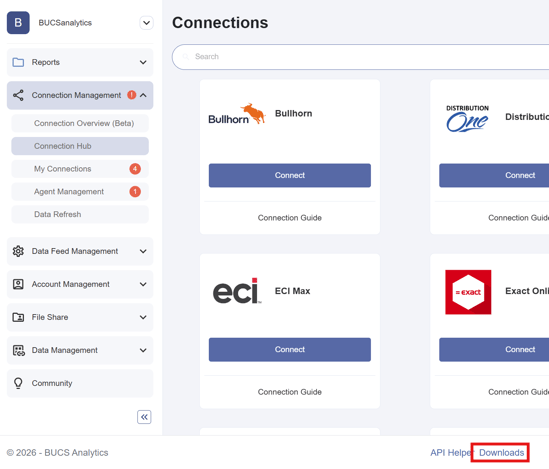
- Download the latest BUCS Remote Agent installer.
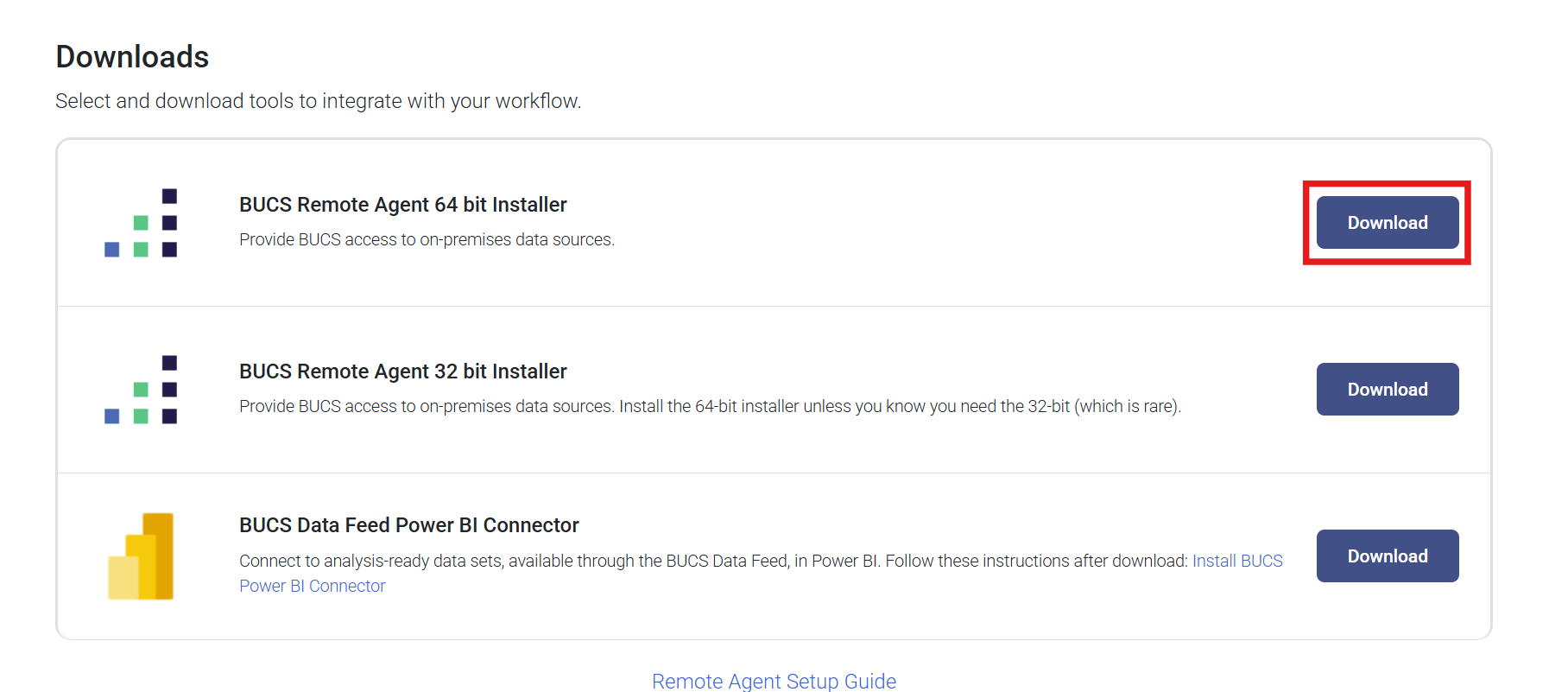
ℹ️ TIP: Use the 64-bit installer unless BUCS has specified otherwise.
Initiate the Update
- Locate the downloaded installer file on the server where the agent is currently installed.
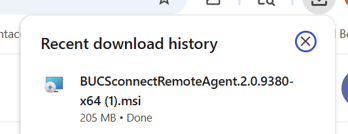
- Double-click the installer to begin the update process.
ℹ️ TIP: You do not need to uninstall the existing agent. Running the installer will upgrade the current version.
Proceed Through the Setup Wizard
- Click Next to begin the setup wizard.
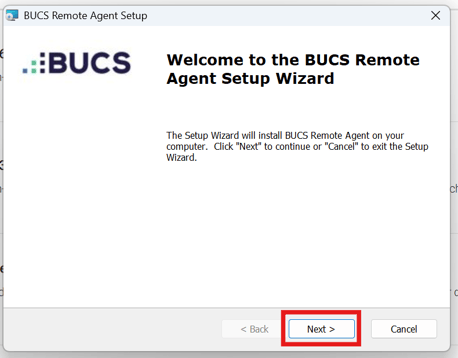
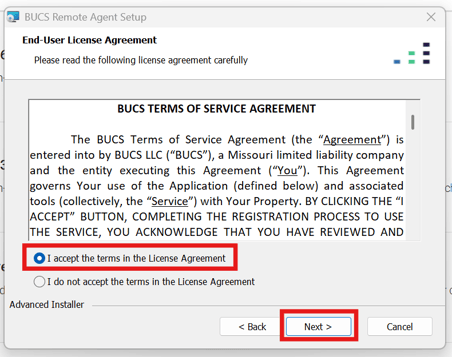
- Review and Accept the BUCS Terms of Service. Click Next to continue.
Install the Updated Version
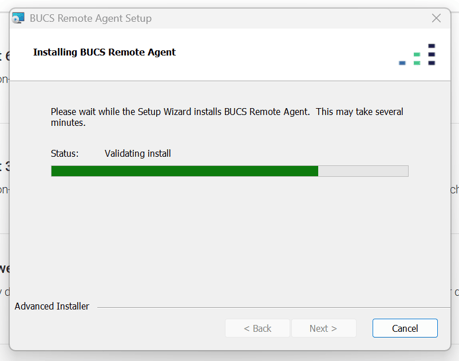
- The installation will begin automatically.
- Windows may prompt you to allow the application to make changes. Click Yes to proceed.
The installer will update the existing BUCS Remote Agent to the latest version.
Confirm Configuration
-
In most cases, your existing configuration (Authorization Key, Customer Code, and Location Name) will be retained.
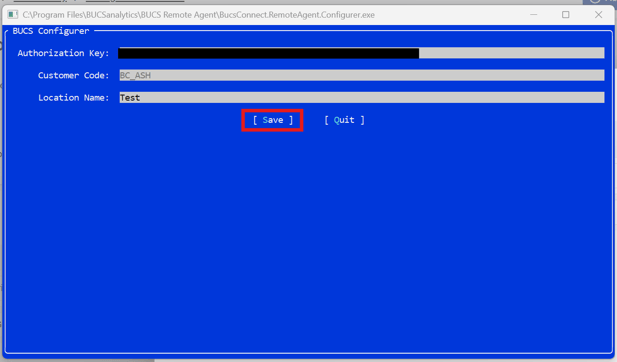
- Click Save.
⚠️ IMPORTANT: If the Remote Agent Configurer App opens and prompts for credentials:
- Navigate to BUCS Customer Portal > Agent Management.
- Click Generate New Key.
- Copy the Authorization Key and Customer Code.
- Enter the values into the Configurer App.
- Click Save, then Quit.
Finish the Update
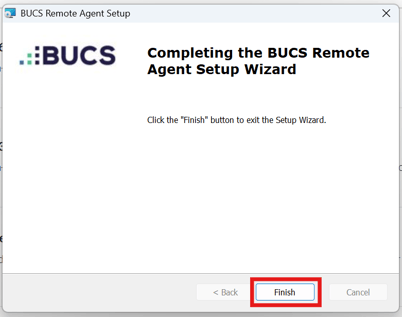
- Click Finish in the setup wizard.
Verify the Agent is Running
After the update is complete:
- Confirm the agent service is running on the server
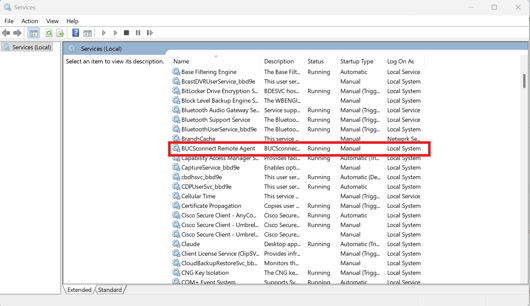
- Verify data refreshes are continuing as expected in the BUCS platform
ℹ️ TIP: If you experience issues after updating, try restarting the server or the BUCS Remote Agent service.
Notify the BUCS team if you need assistance verifying the update or troubleshooting any issues.