
This article will show you how to:
-
Download the BUCS Power BI Connector from the BUCS Customer Portal
-
Install the connector in your local Power BI Custom Connectors folder
-
Add the BUCS trusted certificate thumbprint to your Windows registry
⚠️ IMPORTANT: The BUCS Data Feed connector uses Microsoft's Trusted Third-Party Connector security model. You must add the BUCS certificate thumbprint to your system registry before Power BI will allow the connector to run.
For more information on how Power BI handles trusted connectors, see Microsoft's guide:
https://learn.microsoft.com/en-us/power-bi/connect-data/desktop-trusted-third-party-connectors
ℹ️ In order to access Data Feed tables in the Excel Add-in, users need the Data Feed Manager role. Click here to learn how to manage user roles.
Download the BUCS Power BI Connector
-
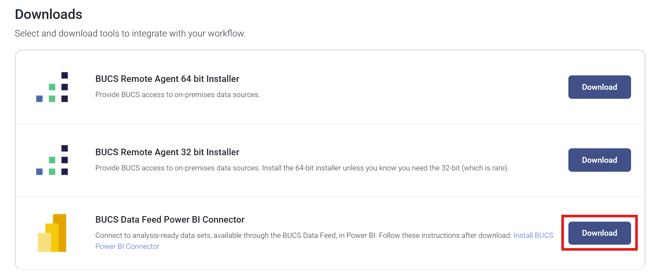
Navigate to BUCS Customer Portal > Downloads.

-
Download the BUCS Data Feed Power BI Connector (.pqx) file.
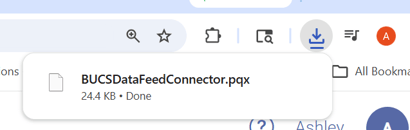
- Downloaded .pqx file will automatically save to your Downloads folder.
Install the BUCS Custom Connector
-
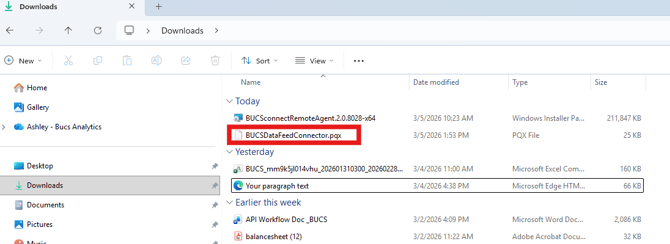
Locate the .pqx file in your Downloads folder.
-
Move or copy the file to the following folder:
C:\Users\[YourUserName]\Documents\Power BI Desktop\Custom Connectors
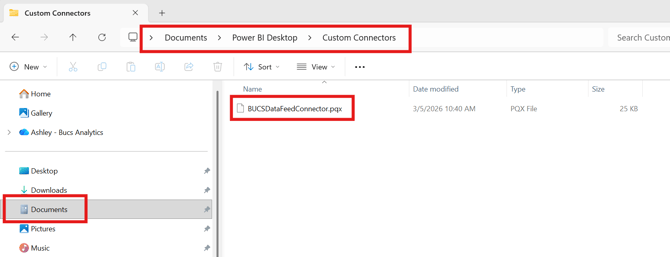
ℹ️ TIP: If the Custom Connectors folder does not exist, you can create it manually.
Add the BUCS Trusted Certificate Thumbprint
Power BI requires custom connectors to be signed by a trusted certificate. To allow the BUCS connector to run, you must add the BUCS certificate thumbprint to the Windows Registry.
-
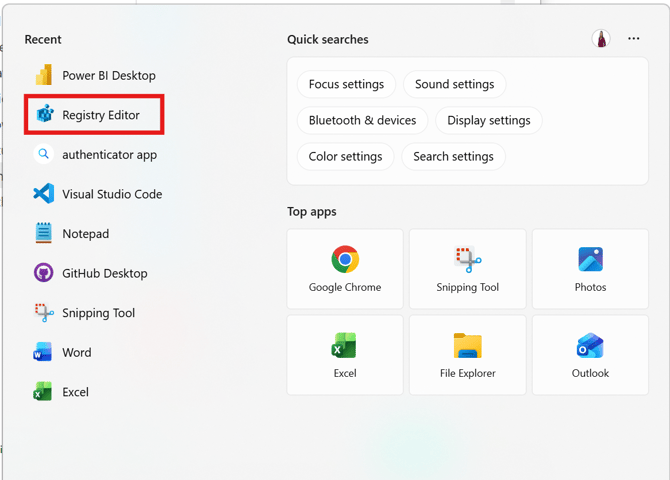
Open the Windows Start Menu.
-
Search for Registry Editor and open the application.
- Click Yes to allow this app to make changes to your device.
-
Navigate to the following registry path: HKEY_LOCAL_MACHINE\Software\Policies\Microsoft\Power BI Desktop
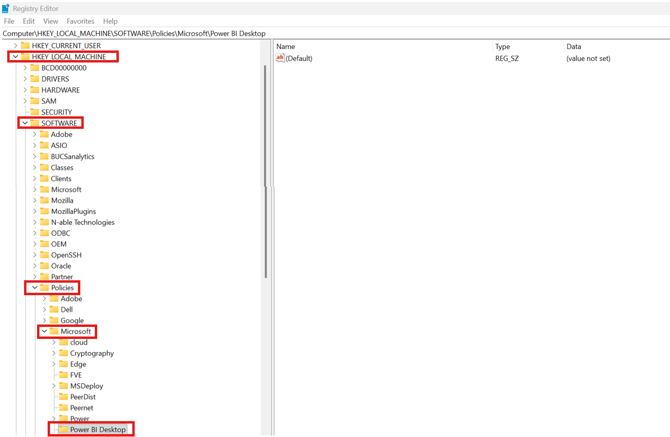
ℹ️ TIP: If the Power BI Desktop key does not exist, you may need to create it. -
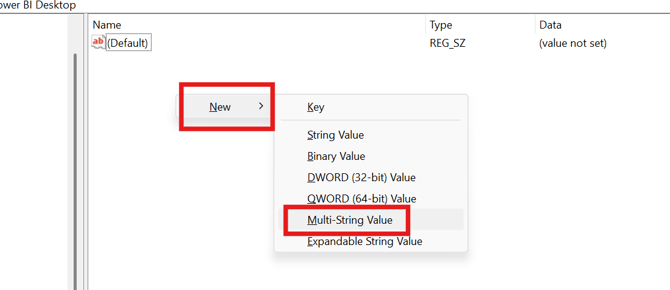
Right-click in the right-hand panel and select: New > Multi-String Value
-
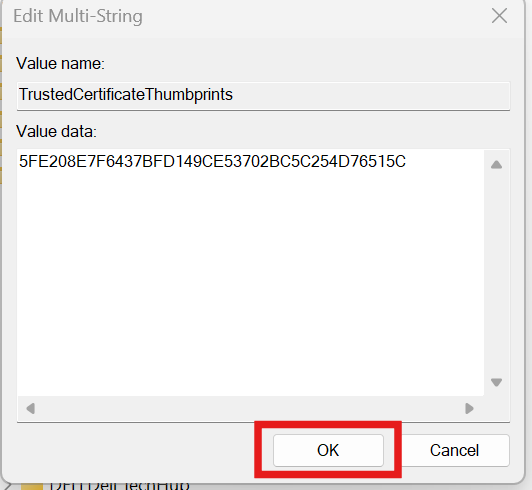
Name the value: TrustedCertificateThumbprints

-
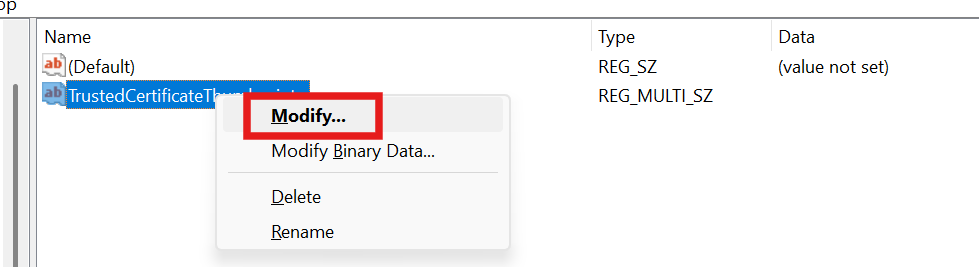
Right-click the new value and select Modify.
-
Enter the following thumbprint value: 5FE208E7F6437BFD149CE53702BC5C254D76515C
-
Click OK to save the value.
ℹ️ TIP: This step ensures that Power BI only runs the BUCS connector because it is signed with a trusted certificate.
Connect to BUCS Data Feed in Power BI
Once the connector is installed and trusted, you can access BUCS datasets directly from Power BI.
-
Open Power BI Desktop.
-
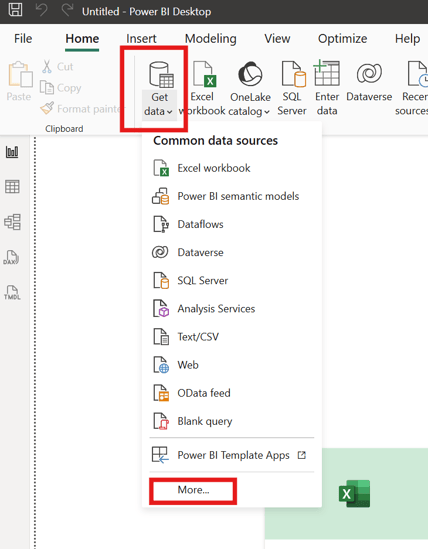
Click Get Data and select More.
-
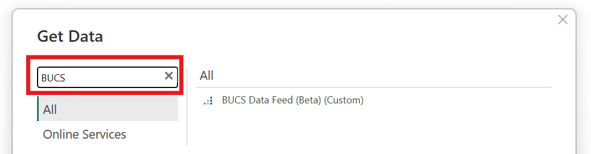
Search for BUCS Data Feed.
-
Select BUCS Data Feed and click Connect.
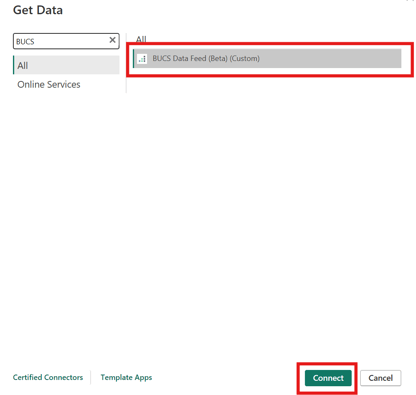
Power BI will establish a secure connection to your BUCS account and display the available Data Feed datasets.
Access Your BUCS Data Feed Datasets
After connecting:
-
Sign in with your BUCS account credentials if prompted.
-
Select the datasets you want to load.
-
Click Load or Transform Data to begin working with the data in Power BI.
Your selected BUCS datasets will now be available in Power BI for visualization, modeling, and reporting.
ℹ️ TIP: If you do not see the BUCS Data Feed connector in the Get Data > More menu, confirm that:
-
The .pqx connector file is in the Custom Connectors folder
-
The trusted certificate thumbprint was added correctly
-
Power BI Desktop was restarted after installation